How I Put My Gym Pass in Apple Wallet on iPhone and Apple Watch
Enter a member ID once. Generate a signed pass. Bring up the barcode from Wallet on the phone or watch when it is time to check in.
I wanted my gym pass to live somewhere easy to reach: Apple Wallet. The information I needed was small—a member ID and a barcode—so I built a small app around that job. Enter the ID, tap Add to Wallet, and let the system handle displaying the pass.
The project has two parts: Gym Pass, the SwiftUI iOS frontend, and Wallet Pass Service, the Node.js/TypeScript backend. The app collects the details. The service builds and signs the file that Apple Wallet accepts.
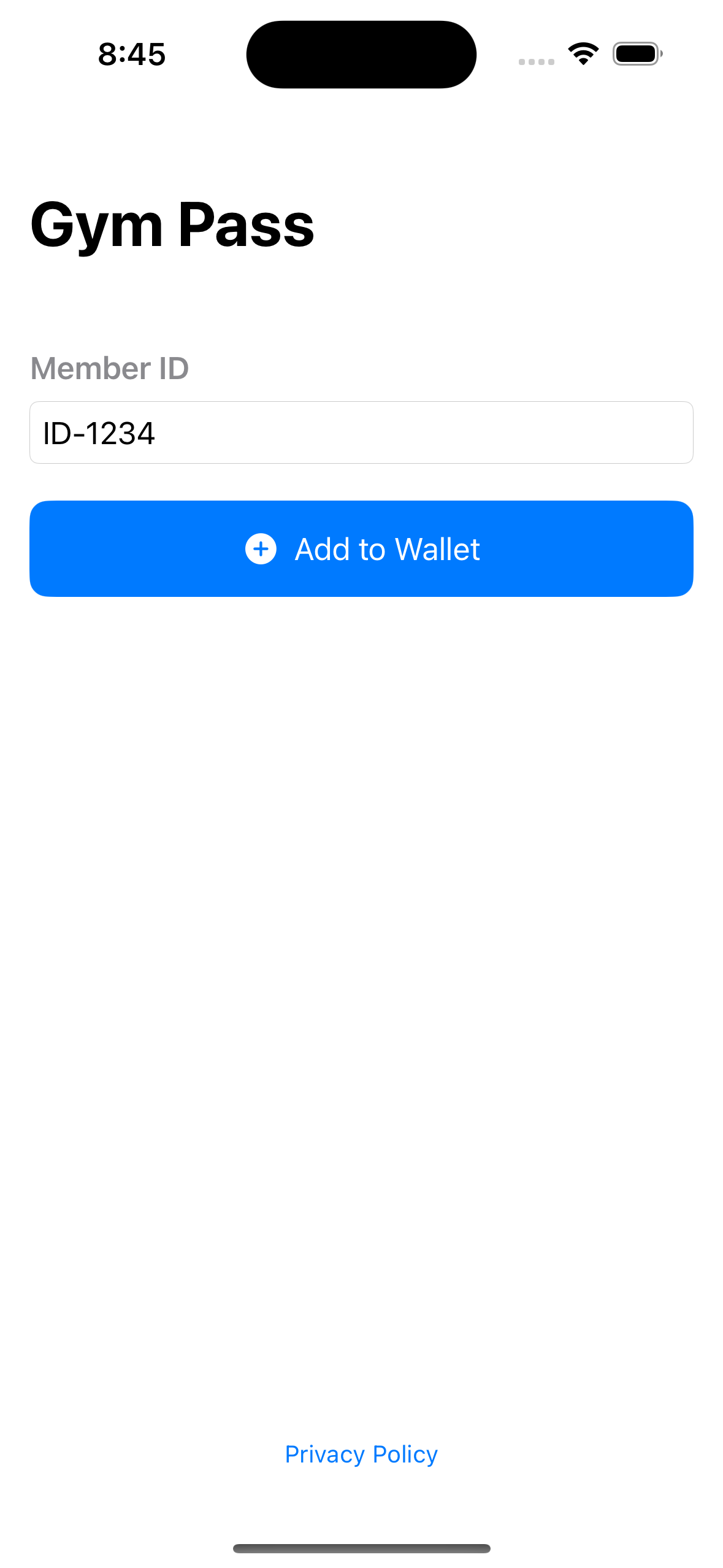
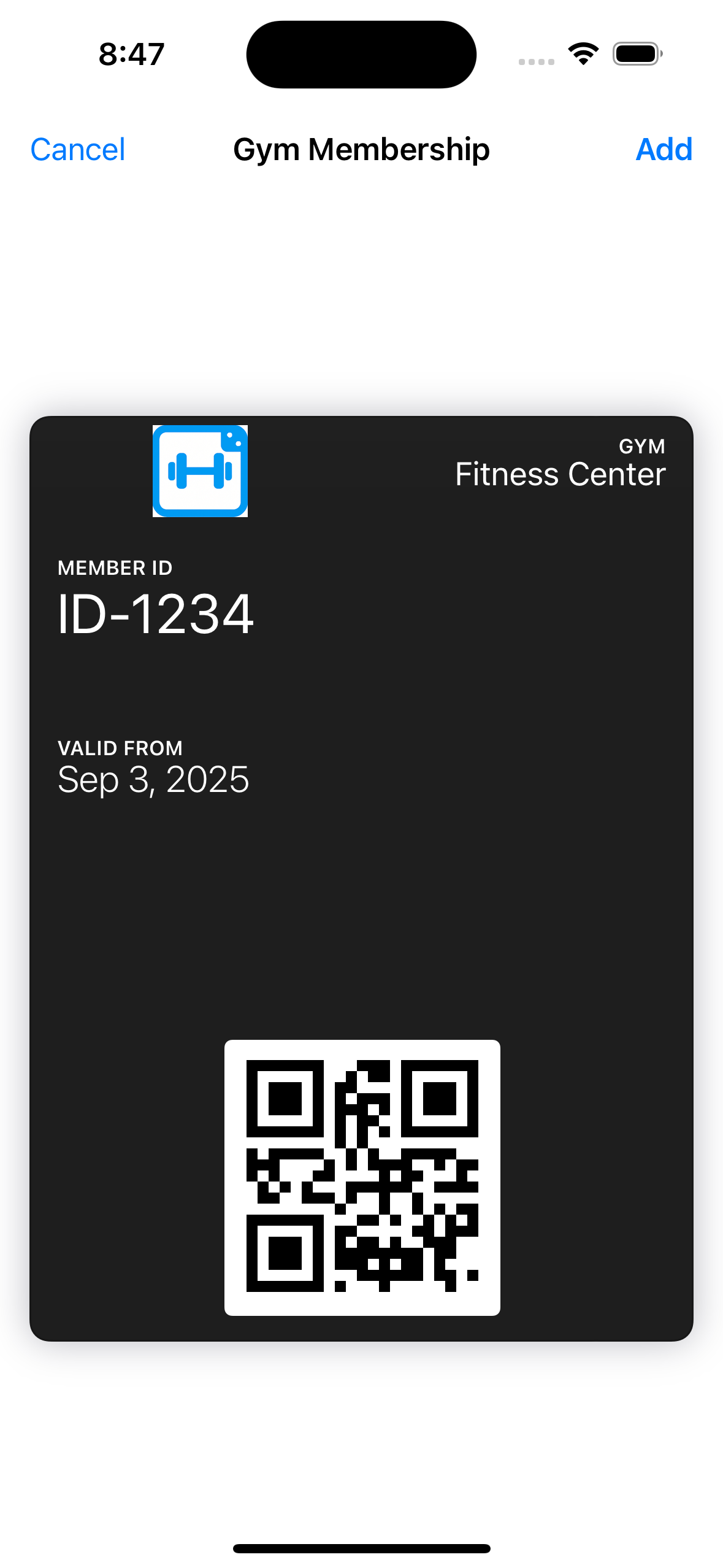
These are the project screenshots from the repositories, including their original example IDs and dates. Click a screenshot to view it at full size.
The useful part is having it on my wrist
The iPhone app is the setup experience. Wallet is where the resulting pass gets used. Once the pass is available on Apple Watch, I can open its Wallet view and present the code from my wrist.
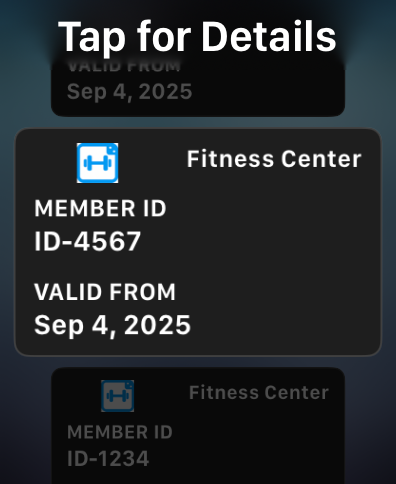

There is no separate watchOS app in this project. Wallet provides the watch presentation of the pass. That keeps the custom code focused on getting the right information into a valid pass package.
The implementation uses a QR code containing the member ID. That needs to match what the gym’s scanner and membership system expect. Putting an ID into Wallet does not convert an NFC credential or a rotating access token into a compatible static barcode, and the pass generator does not validate a membership with the gym.
Keep the frontend small
The SwiftUI screen has a member-ID field, an Add to Wallet action, and an Update Pass state when the app detects an existing pass it can access. NetworkService.swift handles the HTTP requests. PassManager.swift handles PassKit and saves the member ID locally in UserDefaults so it can be pre-filled next time.
The flow crosses the frontend/backend boundary twice:
- The app sends the pass description to
POST /api/v1/passes/generate. - The backend returns a pass ID, serial number, download URL, and expiry time for that download.
- The app downloads the generated
.pkpassfile. - It constructs a
PKPassand presentsPKAddPassesViewController, where the user chooses to add the pass.
Apple supplies the add-pass interface shown above. I do not need to reproduce its preview or manage a custom barcode screen for everyday use. The app also checks whether adding passes is available and reports network or invalid-pass errors.
The request describes the pass
The frontend sends a generic pass with the gym name in a header field, the member ID as the primary field, and a VALID FROM display field. Here is a shortened example of the request shape:
{
  "passType": "generic",
  "serialNumber": "GYM-ID-1234-001",
  "data": {
    "headerFields": [
      { "key": "gym", "label": "GYM", "value": "Fitness Center" }
    ],
    "primaryFields": [
      { "key": "member", "label": "MEMBER ID", "value": "ID-1234" }
    ],
    "barcodes": [{
      "format": "PKBarcodeFormatQR",
      "message": "ID-1234",
      "messageEncoding": "iso-8859-1",
      "altText": "ID-1234"
    }]
  },
  "visual": {
    "foregroundColor": "#FFFFFF",
    "backgroundColor": "#1E1E1E",
    "labelColor": "#FFFFFF"
  },
  "metadata": {
    "description": "Gym Membership",
    "organizationName": "Gym Pass"
  }
}
The actual client also sends the secondary date field and a legacy single-barcode field alongside the barcode array. The QR message is the ID itself; it is not an image uploaded from the phone. Wallet renders the barcode from the pass data.
The VALID FROM label uses the date at generation time. It is display content, not a lookup of when the gym activated the membership. Keeping that distinction clear matters if this reference implementation becomes a gym’s official integration.
The backend turns JSON into a signed package
A Wallet pass is a package with a particular structure. My backend assembles the content in stages, with separate services for the pass JSON, manifest, signature, and archive:
pass.json + image assets
        ↓
manifest.json — file names and SHA-1 hashes
        ↓
signature — detached PKCS#7 signature of the manifest
        ↓
ZIP package with a .pkpass extension
PassGenerator adds the configured Pass Type ID and Apple team identifier, places the fields under the requested pass style, and converts the frontend’s hex colors into Wallet’s RGB strings. ManifestGenerator hashes the content files. PassSignature signs the manifest using the Pass Type ID certificate and includes the Apple WWDR intermediate certificate.
BundleCreator packages the content, manifest, and signature. The implementation uses node-forge for the cryptography and archiver for the ZIP, while keeping the pass assembly in its own code. The structure follows Apple’s pass creation guide.
The signing certificate and its private key stay on the backend. The iOS app receives the finished signed pass. That separation lets the service manage signing credentials without embedding them in the client.
Updating should not create a stack of duplicates
The client derives a stable serial number from the member ID:
static func serialNumber(for memberID: String) -> String {
    return "GYM-\(memberID)-001"
}
Wallet identifies a pass by the combination of its passTypeIdentifier and serialNumber. Keeping both stable allows a newly generated version to replace that pass. A random serial on every request would describe a new pass each time.
The app’s Update Pass action uses the same generation flow. It does not implement the separate Wallet push-update web service. Changing the member ID changes the serial number, so that creates a different pass identity rather than silently changing the old member’s pass.
A download lifetime is not a membership expiry
The backend writes generated files to storage and tracks download metadata in an in-memory map. The default download lifetime is one hour, with periodic cleanup of old files. Once the download has expired, the client needs to generate a fresh package.
That short-lived URL is a delivery mechanism. Its expiry does not delete the installed pass from Wallet or determine whether a membership is active. A Wallet expiration date, when supplied, is a separate pass field; actual admission still depends on the gym’s system.
The app does not require its own user account, but the service still processes member IDs, writes them into pass files, and currently logs generation request bodies. I would not describe that as zero server-side data. A deployment needs to account for both generated files and logs.
Running the frontend and backend together
To use a separate deployment, the backend needs an Apple Pass Type ID certificate with its private key, the appropriate WWDR intermediate certificate, and matching Pass Type ID and team settings. The service README walks through that setup.
On the frontend, change baseURL in NetworkService.swift and configure signing in Xcode. Also align the pass identifiers and entitlements with your own service: the app’s existing-pass lookup contains specific identifiers from this project.
The current client sends its bundle identifier in x-bundle-id, which the backend checks against its configured allowlist. A bundle identifier is public and can be copied, so this is not proof that a request came from a genuine app or an authorized gym member. A service issuing official membership credentials would need member authorization beyond that header.
The repositories include client tests for request construction, serial numbers, response decoding, and persistence, alongside backend tests for pass generation and packaging. The screenshots here are the existing repository captures; final Wallet installation and reader compatibility still belong in physical iPhone, watch, and scanner testing.
The result is a small frontend with a reusable signing backend. The phone collects the ID, the server creates the pass, and Wallet puts the barcode where I wanted it: on the phone and on my wrist. Both halves are available in gym_pass and walletpass_service_opensource.